Overview
This guide walks you through how to update your recurring plan on PJN Mobile. You can adjust your airtime, data, and voice bundles, and change your billing frequency — Weekly, 2 Weekly, or Monthly — at any time.
Your new plan will take effect from your next renewal date. Your balance only updates when you're actually charged — so if you update your plan now, your current Airtime, Data, and Voice balances stay exactly as they are until your next billing date, when the new bundle will be added.
Step-by-Step Guide
Step 1
Log into your PJN app
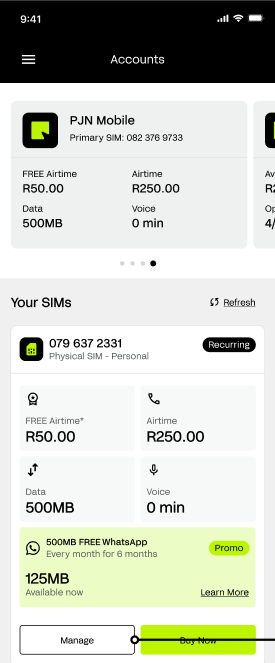
Open the PayJustNow app and tap Accounts at the bottom of the screen. Scroll down to the Your SIMs section where you'll see your active PJN Mobile SIM and your current balances.
Tap the 'Manage' button at the bottom of the screen.
Step 2
Open Your Plan Options
A pop-up menu will appear from the bottom of the screen showing options for your SIM. You'll see your number and SIM type at the top.
Tap 'Update your plan' to go to the plan selection screen.
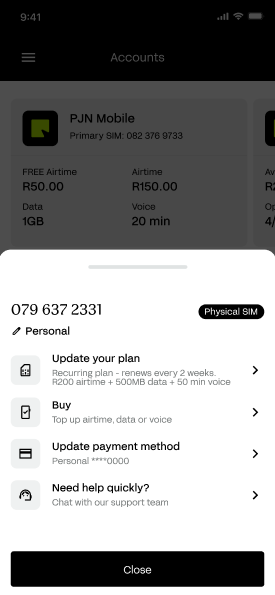
TIP From this same menu you can also Buy airtime or data, update your payment method, or contact support if you need help.
Step 3
Choose your billing period
You'll land on the Update Your Plan page. At the top you'll see three billing period options — Weekly, 2 Weekly, and Monthly. Tap the one that works best for you.
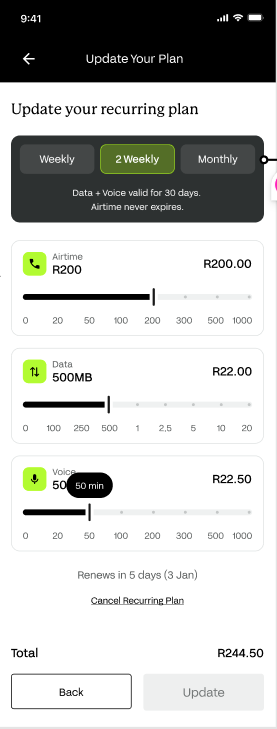
- Weekly — your plan renews every 7 days.
- 2 Weekly — your plan renews every 2 weeks.
- Monthly — your plan renews once a month.
NOTE Data and Voice are valid for 30 days regardless of billing period. Airtime never expires.
Step 4
Select Your Bundles
Use the sliders to choose how much Airtime, Data, and Voice minutes you'd like on your plan. The cost for each selection updates automatically as you move the slider.
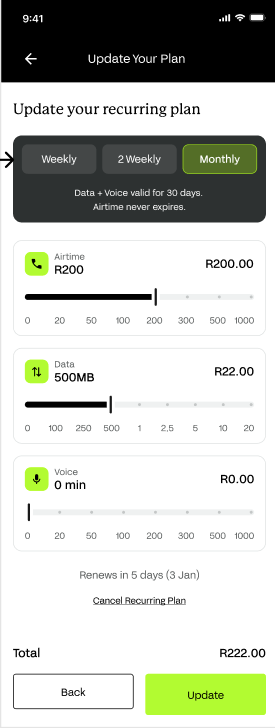
Slide the Airtime slider to your preferred amount.
Slide the Data slider to your preferred data bundle.
Slide the Voice slider to add call minutes — or leave it at 0 min if you don't need voice.
The Total at the bottom of the screen will update in real time to show you exactly what your plan will cost. Once you're happy with your selections, tap the green 'Update' button.
TIP In the example above, R200 airtime, 500MB data, and 50 min voice have been selected on a Monthly billing plan — bringing the total to R222.50
Step 5
Review Your Order Summary
Before your payment goes through, you'll be shown an Order Summary page. Take a moment to review everything carefully.
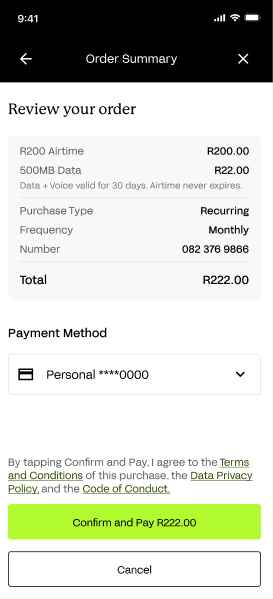
Your saved payment method will be shown under Payment Method. If you'd like to use a different card, tap the dropdown to change it.
When you're happy with everything, tap the green 'Confirm and Pay' button at the bottom of the screen.
NOTE By tapping Confirm and Pay, you agree to the Terms and Conditions, Data Privacy Policy, and Code of Conduct for this purchase. You can review these in full, from the app's Settings menu before confirming.
Step 6
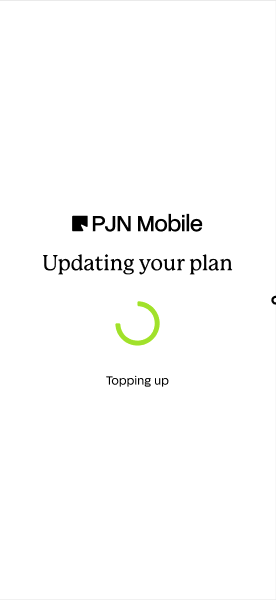
Your plan Is Updating
Once you tap Confirm and Pay, the app will process your order. You'll see an 'Updating your plan' screen with a loading indicator — this usually only takes a few seconds.
Step 7
Success - Plan Updated
Your plan is now active — your new balances will reflect on the Accounts page.
Troubleshoot
If something isn't working as expected, here are some quick fixes:
If you see this... | Try this |
The Update button is greyed out. | Make sure you have made at least one selection on the slider before tapping Update. |
My payment method isn't showing. | Tap 'Update payment method' from the Manage menu and add your card before placing the order. |
My payment has declined. | Check that your card is active and has sufficient funds and confirm your banking app notifications are enabled. Try again or use a different payment method. |
The plan didn't update after confirming. | Check your balances on the Accounts page. If the update hasn't reflected, close and reopen the app. |
I selected the wrong bundle. | You can update your plan again at any time by going back to Manage > Update your plan. |
The app is freezing or crashing. | Close the app fully and reopen it, then try again. If it keeps happening, contact our support team. |
Protecting Yourself from Fraud
Updating your plan involves a payment transaction, which makes it a target for scams. Be aware of the following scenarios and never act on unsolicited requests.
Fraud Scenario | What to Do |
Someone contacts you offering to update or upgrade your plan on your behalf, asking for your card or banking details | Plan updates can only be made by you, inside the official PayJustNow app. Never share your card or banking details with anyone offering to update your plan on your behalf. |
You receive an SMS or email with a "confirm your plan update" link asking you to log in or enter card details | Do not click links in unsolicited messages. Make and review all plan changes only inside the PayJustNow app. |
You're asked to approve a banking app OTP for a plan update you did not make | Do not approve or share the OTP. Contact PJN Mobile for support and your bank immediately, as this may indicate someone has your card details. |
Your plan changed and you didn't make the change yourself | Cancel or revert the change immediately under Manage on your SIM and contact PJN Mobile support to report unauthorised activity. |
Still stuck? Our support team is here to help. Reach us directly from within the app.
Your plan is updated — enjoy your new bundles!
Was this article helpful?
That’s Great!
Thank you for your feedback
Sorry! We couldn't be helpful
Thank you for your feedback
Feedback sent
We appreciate your effort and will try to fix the article