Overview
This guide shows you how to personalise your PJN Mobile SIM by giving it a custom name. By default, your SIM is labelled 'Personal' — you can change this to anything you like, such as your name or a nickname for the SIM.
This is especially useful if you have more than one SIM on your account.
Step 1
Log into your PJN app
Open the PayJustNow app and tap Accounts at the bottom of your screen. Scroll down to the Your SIMs section to see your PJN Mobile SIM card.
Tap the 'Manage' button at the bottom of the screen. 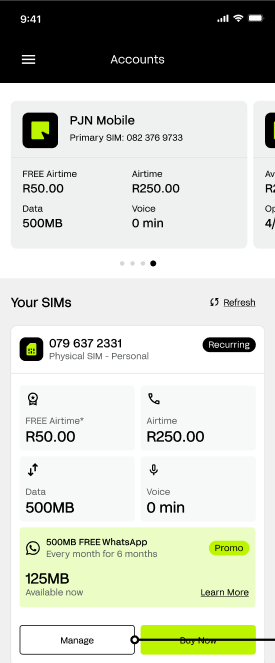
Step 2
Edit Personal Details
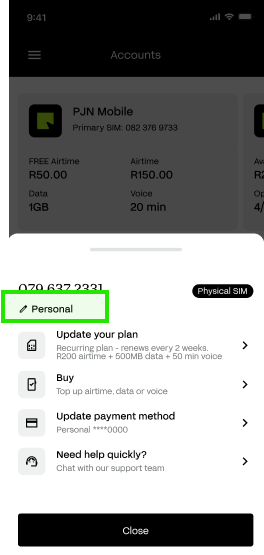
A pop-up menu will slide up showing your SIM number and options. Just below your cell number you'll see a small pencil icon next to the word 'Personal' — this is the current name of your SIM.
Tap the pencil icon next to your SIM name to open the Change Name screen.
Step 3
Enter a new name
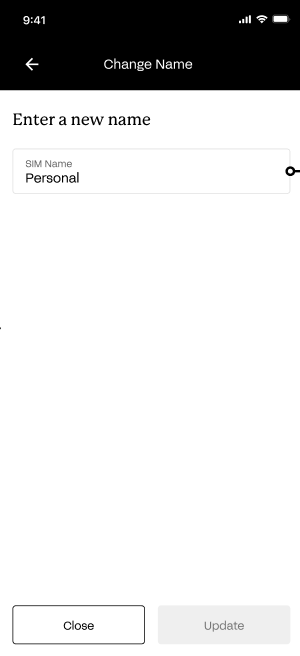
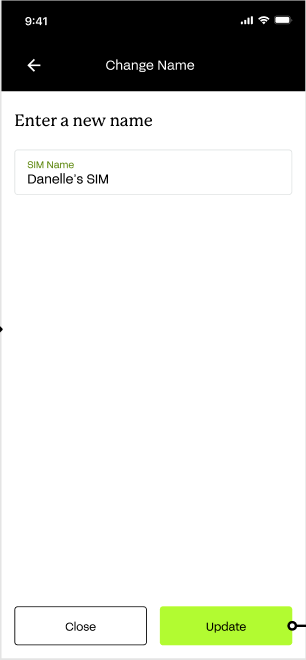
You'll be taken to the Change Name screen. You'll see a text field labelled 'SIM Name' with the current name — 'Personal' — already filled in.
Step 4
Edit the SIM Name
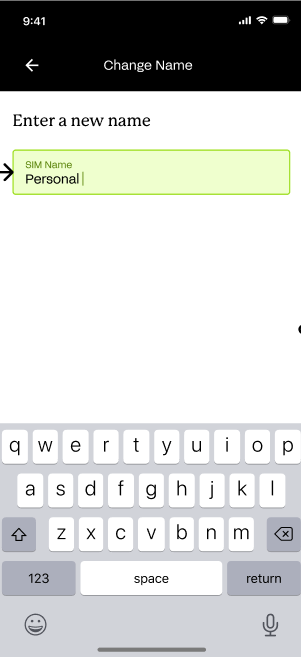
Once you tap the text field, your keyboard will appear and the field will be highlighted in green, ready for you to type. Clear the existing name and type the new name you'd like for your SIM.
Choose a name that's easy to recognise — for example, your first name, 'My PJN SIM', or a nickname. There are no restrictions on what you can call it.
Step 5
Save Your New Name
Once you've typed your new SIM name, the green 'Update' button at the bottom of the screen will activate. Tap it to save your changes.
Step 6
Name Updated Successfully
You'll be taken back to the pop-up menu where you'll see your new SIM name has been updated immediately. Your SIM card on the Accounts page will now display your chosen name going forward.
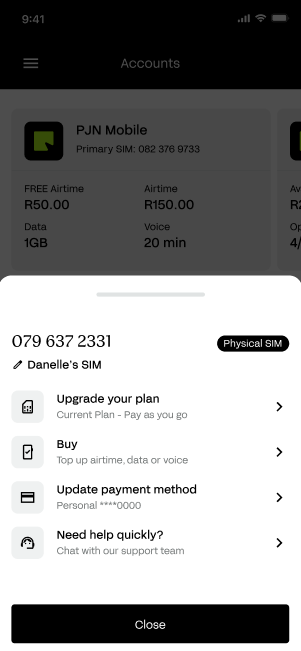
Your SIM name is now updated — you'll see it reflected under your cell number in the pop-up and on the Accounts page.
You can change your SIM name as many times as you like by following the same steps.
Troubleshoot
If something isn't working as expected, here are some quick fixes:
If you see this... | Try this |
I can't find the pencil/edit icon. | Make sure you've tapped 'Manage' first. The pencil icon appears next to the SIM name in the pop-up menu. |
The Update button is greyed out. | Make sure you have typed something in the SIM Name field. The button activates once a name is entered. |
My new name isn't showing. | Close the pop-up and refresh the Accounts page by tapping the Refresh button next to 'Your SIMs'. |
I want to rename it back to Personal. | Follow the same steps and type 'Personal' in the SIM Name field, then tap Update. |
Was this article helpful?
That’s Great!
Thank you for your feedback
Sorry! We couldn't be helpful
Thank you for your feedback
Feedback sent
We appreciate your effort and will try to fix the article