Overview
Balance Enquiry allows you to quickly check your current airtime balance, leftover data, remaining voice minutes, and SMS units — all displayed on a single USSD screen. There’s no need for an app or internet connection.
Step-by-Step Guide
Step 1
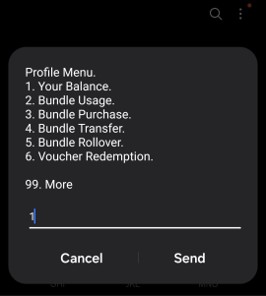
Dial *135# and Select Option 1 — Your Balance
Open your phone's dialer and dial *135#. The Profile Menu will appear showing all available self-service options. Enter 1 and tap Send to select Your Balance.
Step 2
View Your Balance Summary
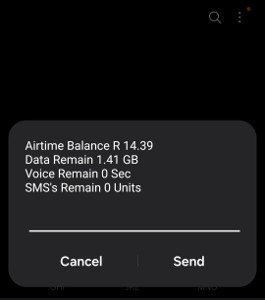
Your balance summary will appear immediately, showing: • Airtime Balance (Rand value) • Data Remaining (MB or GB) • Voice Minutes Remaining (seconds) • SMS Units Remaining.
Understanding Your Balance Screen
The balance screen displays four fields. The table below explains what each one means:
Field | Description | Example |
Airtime Balance | Your available airtime in Rands. Used for calls, SMS, and purchasing data bundles. | R 14.39 |
Data Remain | Remaining data bundle in MB or GB from purchased bundles. Data bundles are valid for 30 days from the date of purchase. | 1.41 GB |
Voice Remain | Remaining bundled voice minutes (displayed in seconds). Voice bundles are valid for 30 days. 0 Sec means no voice bundle is active — calls will use your airtime balance. | 0 Sec |
SMS's Remain | Remaining bundled SMS units. 0 Units means no SMS bundle is active — SMS will use airtime. | 0 Units |
| ||
Important Notes
ℹ | Balance enquiry via *135# Option 1 is free — no airtime is deducted for checking your balance. |
ℹ | Voice Remain and SMS's Remain showing 0 is normal if no voice or SMS bundle has been purchased. Calls and SMS will use airtime at standard rates. |
ℹ | Data balance displayed reflects purchased data bundles only. Out-of-bundle data usage is charged against airtime at the standard out-of-bundle rate. |
ℹ | If your balance screen appears to be incorrect, close the USSD session and re-dial *135# to refresh. |
ℹ | For a detailed breakdown of your data bundle usage, select Option 2 — Bundle Usage from the *135# Profile Menu. |
Troubleshooting
If you experience any difficulty checking your balance, close the USSD session and try the steps again from the beginning. If the issue continues, contact PJN Mobile support on chat.
Was this article helpful?
That’s Great!
Thank you for your feedback
Sorry! We couldn't be helpful
Thank you for your feedback
Feedback sent
We appreciate your effort and will try to fix the article