Overview
This guide walks you through purchasing airtime, data, or voice bundles directly through the PayJustNow app. You can purchase once-off or set up a recurring plan that automatically recharges on your chosen schedule.
PJN Mobile services are provided through our network partner, Cell C. This means your calls, SMSs, and data services are carried on the Cell C network, ensuring reliable coverage and connectivity across South Africa.
Data + Voice bundles are valid for 30 days. Airtime never expires.There are four ways to add airtime or buy data bundles on your Pay Just Now Mobile sim card:
Option 1 — Purchase via the PayJustNow app (once-off or recurring bundle)
Option 2 — Pinless top-up via your banking app (no voucher PIN needed)
Option 3 — Voucher PIN purchased at a retail store
Option 4 — Purchase via an ATM using your bank card
All options are available 24/7. Once your airtime or data is loaded, dial *135# to manage your account, buy bundles, or check your balance.
Option 1 - Purchase via the PayJustNow App
Step 1 — Access Your PJN Mobile Account
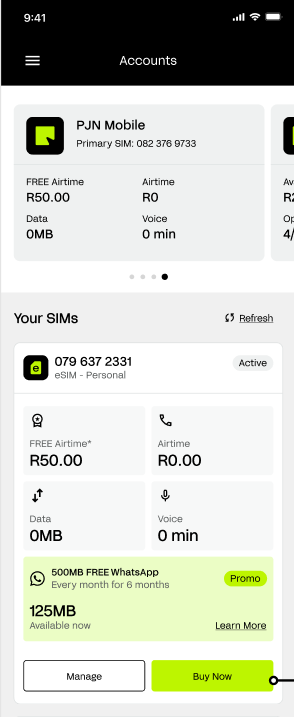
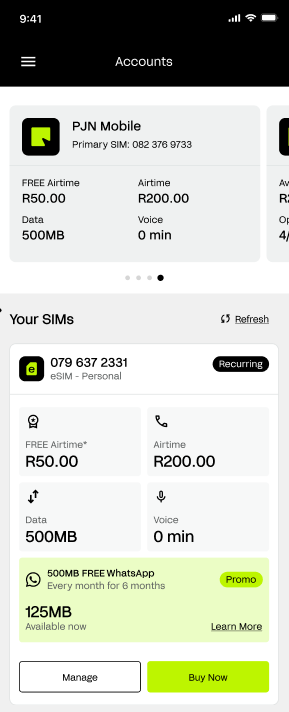
Open the PayJustNow app and navigate to the PJN Mobile section. Your account overview will display your current balances across the following:
a. FREE Airtime
b. Airtime
c. Data
d. Voice
Under the Your SIMs section, your active eSIM or SIM details will be displayed.
Tap the Buy Now button at the bottom of the screen to proceed.
Step 2 — Build Your Bundle
The Build Your Bundle screen will appear, giving you control over what you want to purchase. You will see three adjustable sliders:
a. Airtime — slide to select a rand value (R0 to R1,000)
b. Data — slide to select a data amount (0MB to 20GB)
c. Voice — slide to select minutes (0 to 1,000 min)
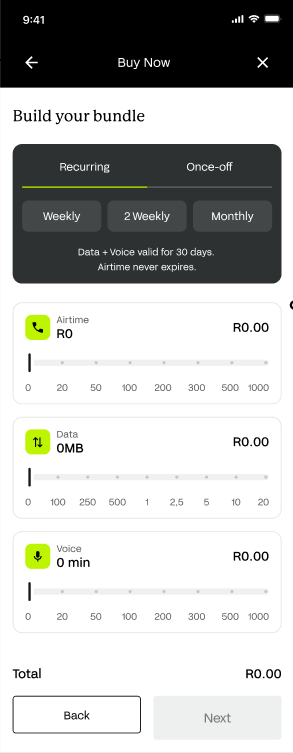
As you move each slider, the cost will update in real time, and a running Total will be displayed at the bottom of the screen.
You do not need to select all three. You can purchase airtime only, voice only, or any combination that suits your needs.
Purchase Type — choose between Once-off or Recurring:
• Once-off — a single purchase with no repeat billing
• Recurring — automatically recharges on your chosen schedule: Weekly | 2 Weekly | Monthly
If you select a Recurring plan, your card will be charged automatically at each interval and your account reloaded with the same bundle. You can cancel the recurring plan at any time.
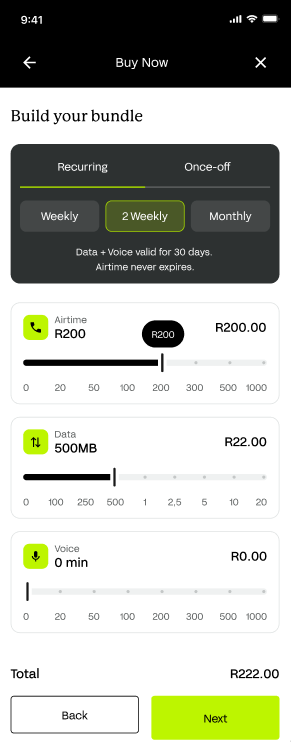
Once you are happy with your selection, tap Next at the bottom to continue.
Step 3 — Review Your Order
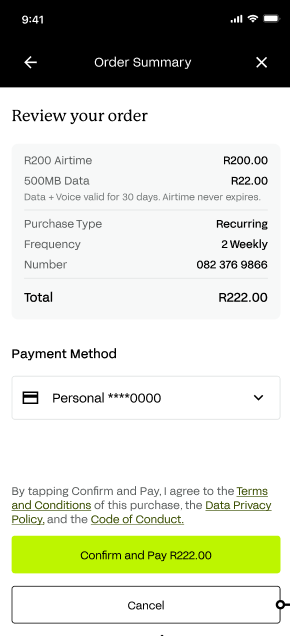
The Order Summary screen will display a full breakdown of your selection before payment is taken, including:
• Items selected (Airtime, Data, Voice)
• Purchase Type and Frequency
• The number being recharged
• Total amount due
Your linked bank card will be displayed under Payment Method. Verify all details are correct before proceeding.
If everything looks correct, tap Confirm and Pay. If you need to make changes, tap Cancel to return to the bundle builder.
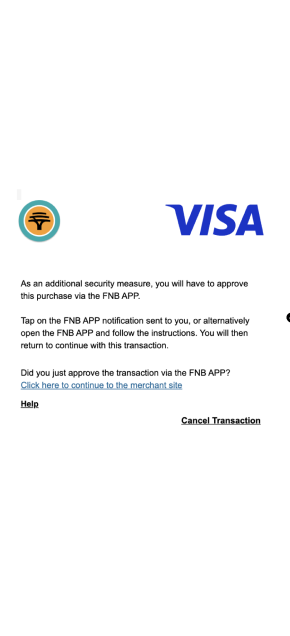
Step 4 — Approve Payment via Your Banking App
Depending on your bank, you may be redirected to a payment authentication screen. You will be prompted to approve the transaction via your banking app as an additional security measure.
- Open your banking app when the notification arrives or tap the notification directly.
- Follow your bank's in-app approval steps.
- Once approved, you will be automatically returned to the PJN Mobile purchase flow.
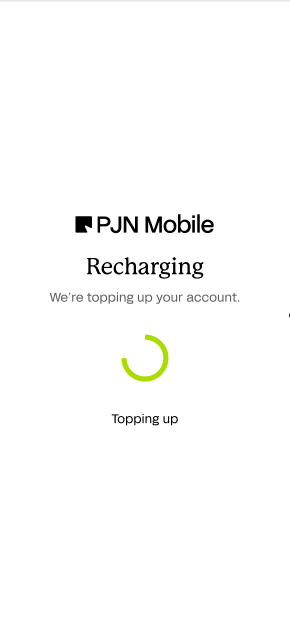
Step 5 — Recharge in Progress
After approving the payment, a Recharging screen will appear confirming that your top-up is being processed. This typically takes a few seconds.
Please do not close the app during this step.
Step 6 — Purchase Confirmation
Once the recharge is complete, a Success screen will appear confirming your purchase. This screen will display:
- A confirmation that your plan is active
- The total order amount (incl. VAT)
- The date and time of the transaction
- Your unique PJN Mobile transaction reference number
Step 7 — View Updated Balances
Tap View Account to return to your PJN Mobile account page. Your updated balances will now reflect under their respective sections:
- Airtime — updated rand value
- Data — updated MB/GB balance
- Voice — updated minutes
If you selected a Recurring plan, your SIM status will show as Recurring under Your SIMs.
Option 2 - Pinless Top-Up via Your Banking App
Pinless top-up lets you buy airtime or data directly from your banking app and have it credited to your Pay Just Now Mobile number instantly — no voucher or PIN required.
Which banks support pinless top-up?
FNB
Nedbank
ABSA
Standard Bank
Capitec
African Bank
Discovery
Step | What to Do |
1 | Open your banking app and log in. |
2 | Navigate to the Prepaid or Airtime & Data section. This is usually found under ‘Payments’, ‘Buy’, or ‘Prepaid’ depending on your bank. |
3 | Select ‘Airtime’ or ‘Data’ as the product type. |
4 | When prompted for the network, select Cell C from the list. If you cannot find Cell C, try searching for ‘Cell C’ in the network list. |
5 | Enter your Pay Just Now Mobile number (the number you want to top up). |
6 | Enter the amount or select a bundle, then confirm the payment. |
7 | Your airtime or data will be credited to your number within a few minutes. |
TIP: Save your number as a beneficiary
Most banking apps allow you to save your Pay Just Now Mobile number as a beneficiary so you can top up quickly in future without re-entering your details.
Option 3 - Voucher PIN from a Retail Store
You can purchase a Cell C airtime voucher from a wide range of retail stores across South Africa. The voucher comes with a PIN that you enter to load airtime onto your account.
Where to buy a voucher:
Retailer | How to Ask | Notes |
PEP | Ask the cashier for a Cell C voucher | Available at all PEP stores nationwide |
Jet | Ask the cashier for a Cell C voucher | Available at selected Jet stores |
Edgars | Ask the cashier for a Cell C voucher | Available at selected Edgars stores |
Pick n Pay | Ask at the service desk or till point for a Cell C voucher | Available at most Pick n Pay stores |
Shoprite/Checkers | Ask at the Money Market counter for a Cell C voucher | Available at Shoprite and Checkers stores nationwide |
Spar | Ask the cashier at the till point for a Cell C voucher | Available at most Spar stores |
Boxer | Ask the cashier for a Cell C voucher | Available at most Boxer stores |
Clicks | Ask the cashier at the till point for a Cell C voucher | Available at selected Clicks stores |
Flash / Kazang | Any spaza shop or informal trader using Flash or Kazang for a Cell C voucher | Widely available in townships and rural areas |
How to redeem your voucher PIN:
Step | What to Do |
1 | Purchase your Cell C voucher from a store and receive a printed slip with your PIN. |
2 | On your phone, dial *102* Voucher Pin#. Or alternatively dial *135# and follow the steps below. |
3 | Select option 6 to ‘Redeem Voucher’ from the USSD menu. |
4 | Enter the voucher PIN printed on your slip. |
5 | Your airtime will be loaded instantly. You will receive an SMS confirming the top-up. |
6 | To buy data bundles with your loaded airtime, dial *135# and select option 3 ‘Bundle Purchase’. |
Keep your voucher slip safe
Your voucher PIN can only be used once. Keep your slip in a safe place until you have successfully redeemed it. If you have trouble redeeming your voucher, contact customer support.
Option 4 - Purchase via an ATM
Most South African banks allow you to purchase airtime or data bundles directly from an ATM using your bank card. The exact menu options may vary slightly depending on the bank, but the process is generally the same.
Step | What to Do |
1 | Insert your bank card into the ATM and enter your PIN. |
2 | Select Prepaid Services, Buy Airtime/Data, Prepaid Mobile, or a similar menu option (wording may vary by bank). |
3 | Choose Airtime or Data Bundle. |
4 | Select the mobile network. For Pay Just Now Mobile, choose Cell C from the list of available networks. |
5 | Enter the cellphone number you would like to recharge. |
6 | Select the airtime amount or data bundle you wish to purchase. |
7 | Review the details displayed on the screen and confirm that they are correct. |
8 | Select the account to debit if prompted (Cheque, Savings, or Credit). |
9 | Complete the transaction and collect the receipt if required. |
10 | Your airtime or data will be credited to your number within a few minutes. |
ATM menu options may vary
The names and locations of menu options can differ between banks and ATM providers. If you cannot find the prepaid services option, follow the on-screen prompts or contact your bank for assistance.
Troubleshooting
Issue | Resolution |
Balance not updated after purchase | Tap Refresh on the Your SIMs screen. Allow up to 5 minutes for the recharge to reflect. |
Payment declined | Check that your card details are up to date under Payment Methods in your profile. Ensure sufficient funds are available. |
Banking app approval not received | Check that your banking app notifications are enabled. You can also open your banking app manually and approve from there. |
Recurring plan charged unexpectedly | Recurring plans auto-charge at your selected frequency. If you cancel after a charge has already gone through, that recharge stands until your next billing date — it is not reversed or refunded. To stop future charges, navigate to your SIM and cancel the recurring plan under Manage. Any remaining Data or Voice balance will expire after 30 days; Airtime does not expire. |
Recharge screen stuck / loading | Check your internet connection and restart the app. If the issue persists, contact PJN Mobile support to confirm whether the transaction was processed. |
Protecting Yourself from Fraud
Bundle purchases involve a payment transaction, which makes this a target for scams. Be aware of the following scenarios and never act on unsolicited requests.
Fraud Scenario | What to Do |
Someone contacts you offering to buy or top up a bundle on your behalf, asking for your card or banking details | Bundle purchases can only be made by you, in the official PayJustNow app. Never share your card or banking details with anyone offering to purchase on your behalf. |
You receive an SMS or email with a "confirm your bundle purchase" link asking you to log in or enter card details | Do not click links in unsolicited messages. Make and review all bundle purchases only inside the PayJustNow app. |
You're asked to approve a banking app OTP for a bundle purchase you did not make | Do not approve or share the OTP. Contact PJN Mobile support and your bank immediately, as this may indicate someone has your card details. |
You notice a recurring plan was set up on your account that you did not authorise | Cancel the recurring plan immediately under Manage on your SIM and contact PJN Mobile support on chat to report unauthorised activity. |
Need Help?
Was this article helpful?
That’s Great!
Thank you for your feedback
Sorry! We couldn't be helpful
Thank you for your feedback
Feedback sent
We appreciate your effort and will try to fix the article