Overview
This guide explains how to transfer data to another PJN Mobile or Cell C number using the USSD self-service menu. No internet connection or app is required — the entire process is completed via your phone's dialler.
You can transfer data to another PJN Mobile or Cell C number. Ensure you have sufficient data balance before initiating a transfer.
Step by Step Guide
Step 1
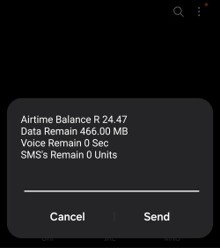
Dial *135# and Check Your Balance
Open your phone's dialler and dial *135#, then tap Send. The USSD menu will launch and display your current balance, including:
- Airtime Balance (Rands)
- Data Remaining (MB)
- Voice Remaining (Seconds)
- SMS's Remaining (Units)
Review your data balance to confirm that you have enough to transfer before proceeding. Tap Send to continue to the main menu.
Step 2
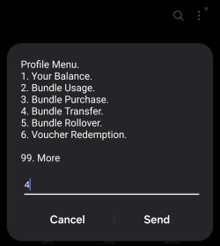
Select Bundle Transfer from the Profile Menu
The Profile Menu will appear with the following options:
- Your Balance
- Bundle Usage
- Bundle Purchase
- Bundle Transfer
- Bundle Rollover
- Voucher Redemption
Type 4 in the input field and tap Send to select Bundle Transfer.
Step 3
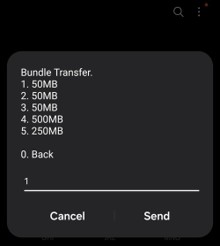
Select Your Bundle
The Bundle Transfer screen will display a list of available data bundles on your account. Select the bundle you wish to transfer by entering the corresponding number.
In this example, option 1 (50MB) is selected. Type your selection and tap Send.
Step 4
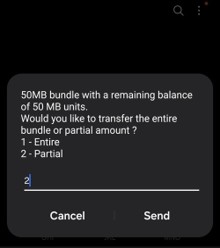
Choose Entire or Partial Transfer
You will be asked whether you want to transfer the entire bundle or only a partial amount:
- Entire — transfers the full bundle balance to the recipient
- Partial — allows you to specify a custom amount to transfer
Type your selection and tap Send. In this example, 2 (Partial) is selected.
Step 5
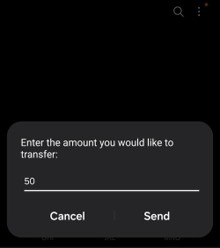
Enter the Amount to Transfer
If you selected Partial, you will be prompted to enter the amount you would like to transfer (in MB). Type the amount and tap Send.
In this example, 50 is entered to transfer 50MB.
You cannot transfer more than your available data balance. The system will reject values exceeding your remaining data.
Step 6
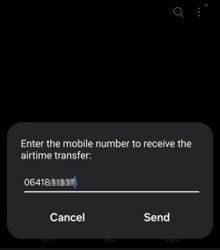
Enter the Recipient's Mobile Number
Enter the PJN Mobile or Cell C number of the person you would like to transfer data to, then tap Send.
Ensure the number is correct before proceeding. Data transfers cannot be reversed once confirmed.
Step 7
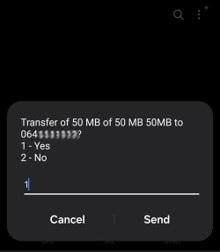
Confirm the Transfer
A confirmation screen will display a summary of the transfer, including the amount and recipient number. Review the details carefully.
- Yes — confirm and proceed with the transfer
- No — cancel and return to the menu
Type 1 and tap Send to confirm.
Step 8
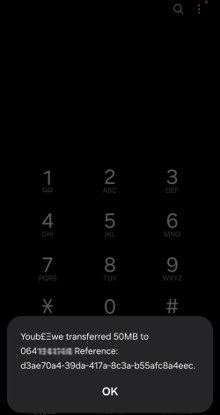
Transfer Notification
Once confirmed, a notification will appear confirming the transfer was successful. This message will include:
- The amount transferred (MB)
- The recipient's mobile number
- A unique transaction reference number
Tap OK to dismiss the notification.
Step 9
Verify Your Remaining Balance
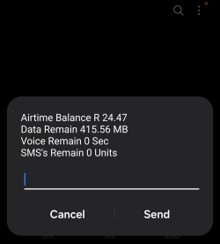
Dial *135# again to check your updated balance and confirm the data was deducted correctly.
In this example, the data balance has reduced from 466.00MB to 415.56MB, confirming the 50MB transfer was successful.
Troubleshooting
Issue | Resolution |
*135# not responding | Ensure your SIM is active and has network signal. Try again after a few seconds. |
Transfer rejected — insufficient data | Check your balance first via *135# → Option 1. You cannot transfer more than your available data balance. |
Incorrect number entered | Data transfers cannot be reversed under any circumstance, even if the wrong number was entered. PJN Mobile is unable to recover or refund a transfer sent to the wrong number. Always double-check the recipient's number before confirming. |
Bundle Transfer option not showing | Ensure you have at least one active data bundle on your account. If you don't have a bundle, see the How to Purchase a Bundle guide. If the issue persists after purchasing one, contact PJN Mobile support. |
Balance not updated after transfer | Dial *135# again to refresh. Allow up to 2 minutes for the deduction to reflect. |
Data transfers are available to PJN Mobile and Cell C numbers. Ensure the recipient's number is on the PJN Mobile or Cell C network before initiating a transfer.
Protecting Yourself from Fraud
Because data transfers are irreversible, they are a common target for social engineering scams. Be aware of the following scenarios and never act on unsolicited requests.
Fraud Scenario | What to Do |
Someone calls or messages claiming to be PJN Mobile support and asks you to transfer data to a number "to verify your account" or "unlock a feature" | PJN Mobile will never ask you to transfer data for account verification. Hang up and contact us directly through our official support channels. |
A friend, family member, or stranger urgently asks you to transfer data to their PJN Mobile number, often citing an emergency | Verify the person's identity through a separate channel before transferring. Scammers often impersonate contacts during urgent or emotional situations. |
You're offered a reward, prize, or payment in exchange for transferring data to a specific number | This is almost always a scam. Do not transfer data in exchange for any promised reward — remember; transfers cannot be reversed once confirmed. |
You notice data has been transferred from your account that you did not authorise | Contact PJN Mobile support immediately to report the unauthorised transfer. Set a SIM PIN if available to help prevent unauthorised USSD access. |
Need Help?
Please contact PJN Mobile Customer Support.
Was this article helpful?
That’s Great!
Thank you for your feedback
Sorry! We couldn't be helpful
Thank you for your feedback
Feedback sent
We appreciate your effort and will try to fix the article