Use this guide to activate your PJN Mobile eSIM in the PayJustNow app in about 2 minutes. Before you start, confirm that your device supports eSIM, that you can access the app on a stable Wi-Fi or mobile data connection, and that you have your new eSIM ready under Your SIMs.
Before you start: Confirm that your phone supports eSIM, keep the PayJustNow app open during activation, and make sure you have a stable internet connection to avoid setup failure.
Step 1: Navigate to the PJN Mobile Section
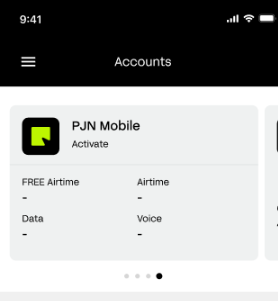
Open the PayJustNow app and tap on the PJN Mobile account card. Your account overview will display:
- FREE Airtime balance
- Airtime balance
- Data balance
- Voice balance
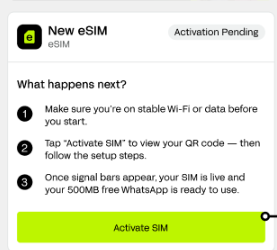
Scroll down to locate the Your SIMs section. You will see your New eSIM listed with an Activation Pending status.
Tap the Activate SIM button at the bottom of the screen to begin.
Step 2 — Scan the QR Code
The Activate eSIM screen displays a QR code for installation on the device that will use the eSIM. If scanning from the same device is not practical, save or share the QR code image and use the manual activation codes shown on the same screen if needed.
Select the tab that matches your device type:
- Android Devices
- iOS Devices
Tip: You can also tap Share/Save Code to save or share the QR code image if needed.
Android Devices:
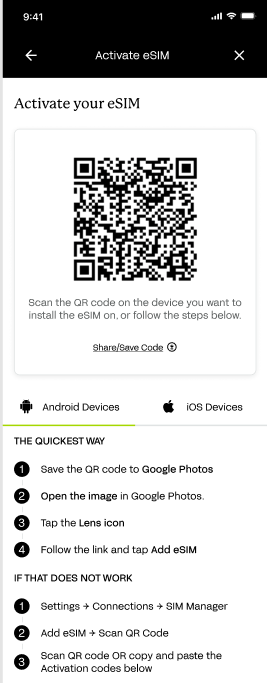
Android — Quickest Method
1. Save the QR code image to Google Photos.
2. Open the image in Google Photos.
3. Tap the Lens icon.
4. Follow the link and tap Add eSIM.
Android — Quickest Method
1. Save the QR code image to Google Photos.
2. Open the image in Google Photos.
3. Tap the Lens icon.
4. Follow the link and tap Add eSIM.
iOS Devices:
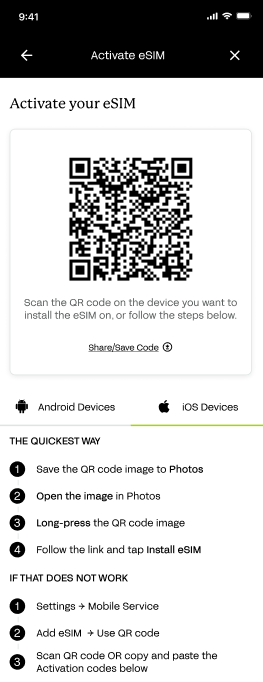
iOS — Quickest Method
1. Save the QR code image to Photos.
2. Open the image in Photos.
3. Long-press the QR code image.
4. Follow the link and tap Install eSIM.
iOS — Manual Method (if QR scan does not work)
1. Go to Settings → Mobile Service.
2. Tap Add eSIM → Use QR Code.
3. Scan the QR code or copy and paste the Activation Codes below.
Activation Codes: The SM+DP+Address and Activation Code are displayed at the bottom of the eSIM screen (visible after tapping Activate SIM). These can be used as an alternative to the QR code.
Step 3 — Activation in Progress
Once the QR code has been scanned and the setup steps are confirmed, the app will display an Activating your SIM screen.
During this time:
1. Ensure you remain on a stable Wi-Fi or data connection.
2. Do not close the app.
3. Allow approximately 60 seconds for activation to complete.
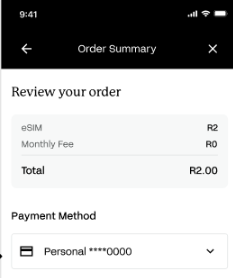
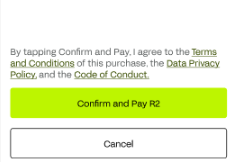
Step 4 — eSIM is Live
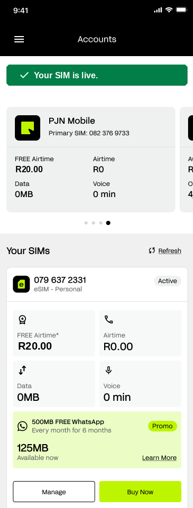
Once activation is successful, the app will display a confirmation banner:
Your eSIM will now appear under Your SIMs with an Active status and the assigned number. You will also receive:
• R20.00 FREE Airtime
• 500MB FREE WhatsApp data — distributed as 125MB per week for 6 months when you load R50 or more.
Troubleshooting
Issue | Resolution |
QR code shows as invalid or expired | The QR code was consumed during a cancelled activation attempt. Contact PJN Mobile support to request a new QR code. |
Activation cancelled mid-process | Re-open the app and check if the eSIM already appears under Your SIMs. If visible, tap it to enable. If not, restart the activation using the same QR code — it remains valid unless it has already been successfully used. If the same QR code is rejected, contact PJN Mobile support for a new one. |
QR code scan not working | Use the manual method: enter the SM+DP+Address and Activation Code manually via your device SIM settings. |
Activation taking longer than 60 seconds | Check your Wi-Fi or data connection and tap Refresh on the Your SIMs screen. If the status remains pending after refreshing, please contact us for assistance. |
eSIM not compatible with device | Confirm your device supports eSIM. Most modern iPhones (XS and later) and Android flagships support eSIM. |
If the QR code is invalid or expired, activation stays pending after refresh, or your device does not support eSIM, please contact support for assistance.
Protecting Yourself from Fraud
eSIM activation involves QR codes and activation codes, which makes it a target for scams. Be aware of the following scenarios and never act on unsolicited requests.
Fraud Scenario | What to Do |
Someone contacts you offering to activate your eSIM for you, asking for your QR code or activation codes | eSIM activation is self-service via the app only. Never share your QR code or activation codes with anyone — these are linked to your account. |
You receive an SMS or email with a link claiming your eSIM is "expiring" or needs "re-verification" | Do not click links in unsolicited messages. Manage and activate your eSIM only inside the official PayJustNow app. |
You're asked to pay an "activation fee" before your eSIM can be activated | eSIM activation is completely free. Never pay anyone to activate your eSIM — decline and contact PJN Mobile support on. |
Your eSIM activates on a device you don't recognise | Contact PJN Mobile support on immediately. Someone may have access to your QR code or account without your knowledge. |
This article applies to eSIM activation via the PayJustNow app only. Activation methods may vary on other platforms.
Was this article helpful?
That’s Great!
Thank you for your feedback
Sorry! We couldn't be helpful
Thank you for your feedback
Feedback sent
We appreciate your effort and will try to fix the article