Overview
This guide explains how to order a SIM card through the Pay Just Now (PJN) Mobile App. The process is quick and easy, allowing you to get connected in just a few simple steps. Follow the instructions below to complete your SIM card order and start enjoying PJN Mobile services.
Before you order your physical SIM card or eSIM card, make sure you have the following:
✓ | The PJN Mobile app downloaded and installed on your phone |
✓ | You are logged into your PJN account |
✓ | A valid South African ID document (for RICA verification) |
✓ | A debit or credit card for payment |
✓ | For eSIM confirm your device supports eSIM |
✓ | For Physical SIM: know your nearest Pargo collection point |
Step 1: Open the app and tap Get Connected
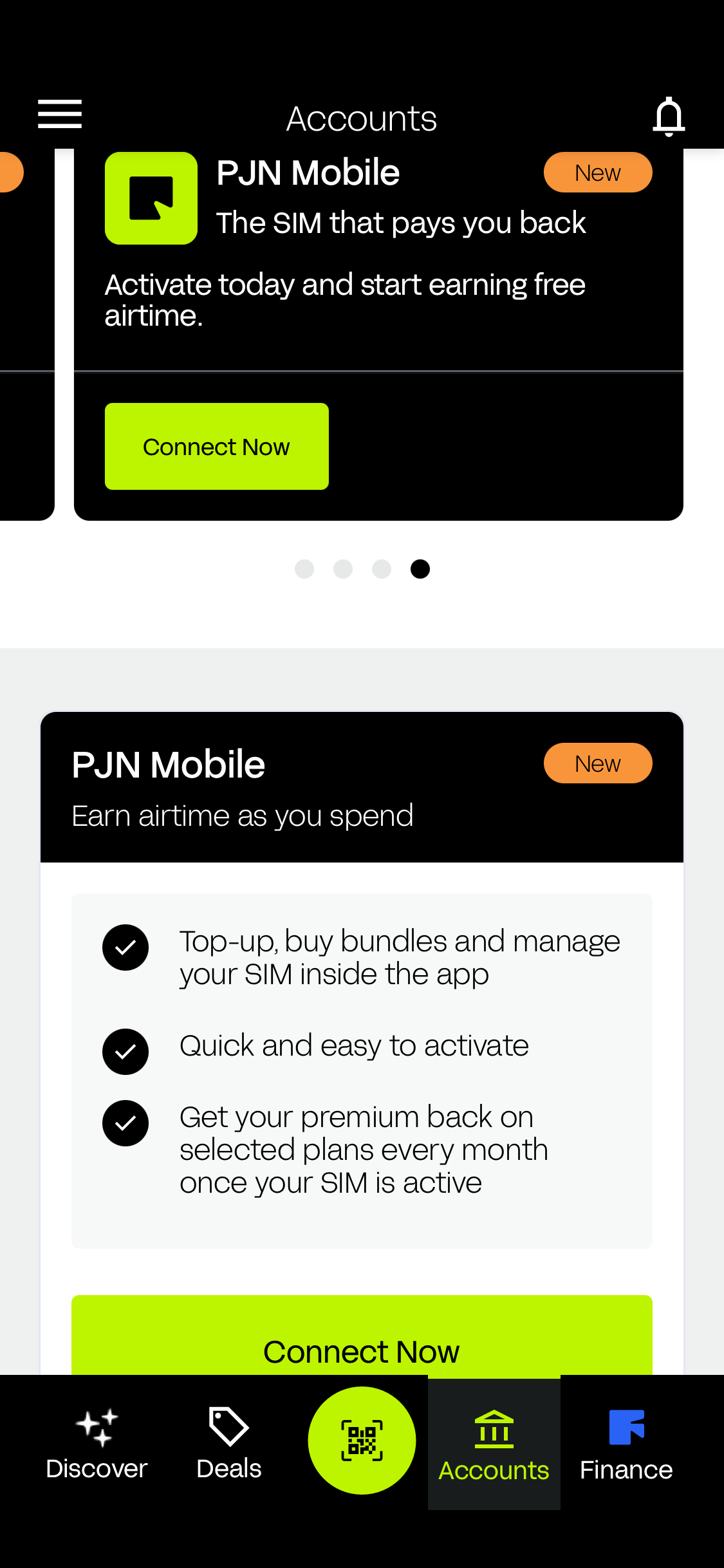
Open the PJN Mobile app and go to the Get PJN Mobile section. The welcome screen shows your key benefits:
- Free R20 Airtime upon activation.
- 500MB WhatsApp free every month (125MB per week) when you load R50 or more
- Earn up to R200 airtime monthly for on-time payments
- Recharge your way — no fixed bundles, no bill shock
- Use airtime and data on any network, any time
Tap Get Connected at the bottom of the screen to continue.
Step 2: Choose your SIM type
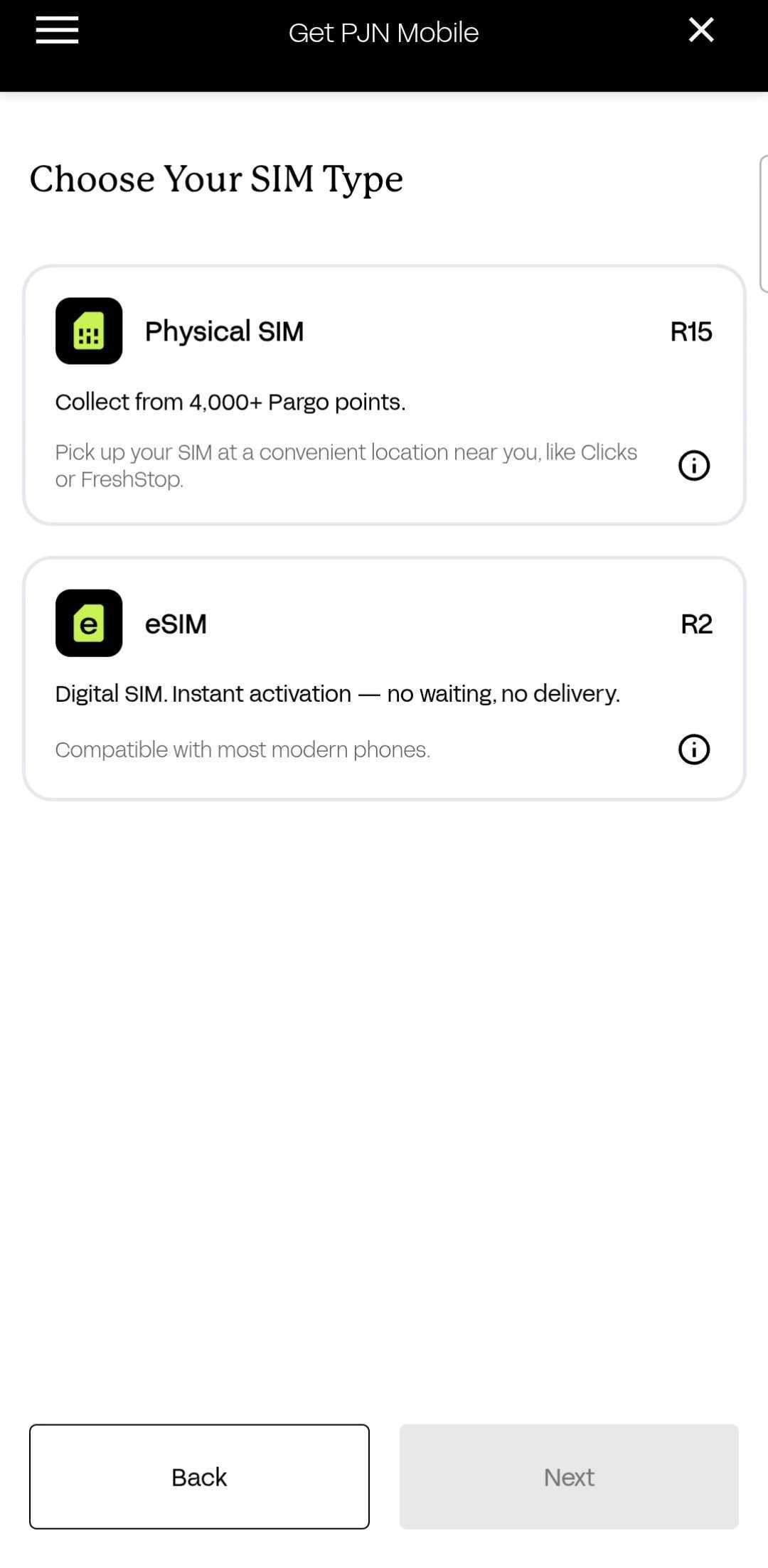
Two options are available
Physical SIM | R15 — Collect from 4,000+ Pargo points (e.g. Clicks, FreshStop. Delivery takes 2–5 business days. |
eSIM | R2 — Digital SIM. Instant activation — no waiting, no delivery. |
Tap your preferred option, it will be highlighted in green, then tap Next to continue
Step 3: Next Steps
After tapping Next, your choice is confirmed and the app moves to the delivery options screen:
If you chose the Physical SIM, you'll be asked to find a collection point (see Step 4). If you chose the eSIM, you'll skip straight to the order summary and payment screen.
Not sure which to pick? Choose eSIM for instant activation, or Physical SIM if you prefer a traditional card.
Step 4: Enable location to find Pargo points (Physical SIM only)
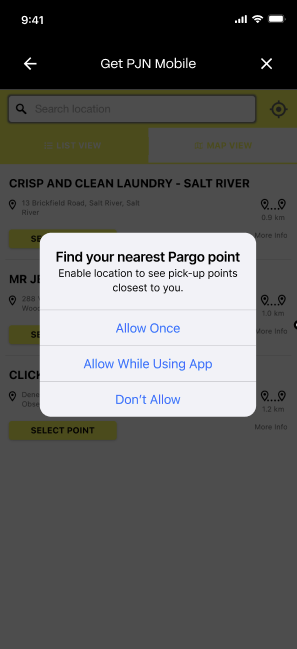
If you chose a Physical SIM, the app will ask to use your location. Select Allow While Using App to automatically see the nearest Pargo points. You can also search manually.
Your location is only used to find collection points. PJN Mobile handles location data in accordance with POPIA.
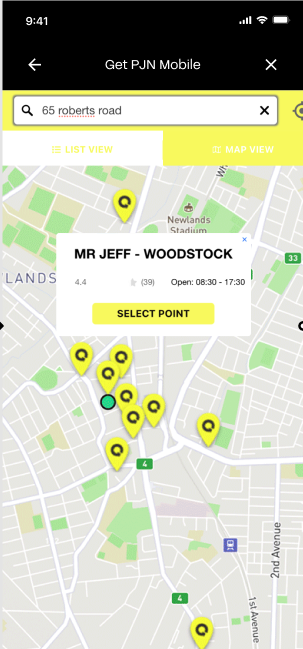
Step 5: View and select your Pargo collection point
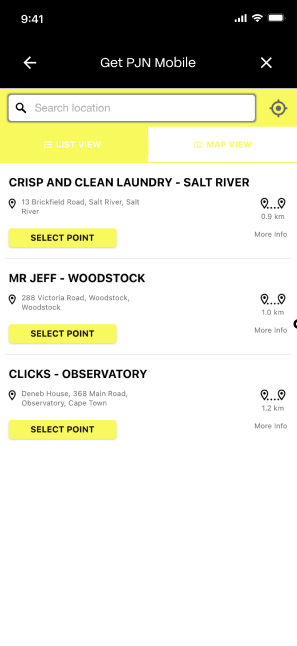
The app displays the nearest Pargo points to you, each showing:
Name, address and distance
A Select Point button and More Info option
Switch between List View and Map View at the top. Tap any yellow pin in Map View to see operating hours before confirming.
Tip: Popular points include Clicks, FreshStop and Mr Jeff. Check the collection points operating hours before confirming.
Step 6: Collection Point Confirmed
Once you've tapped Select Point, the app confirms your chosen Pargo location with its name and address displayed on screen.
Double-check the address shown — this is where you'll collect your SIM.
Tap Next to proceed to your order summary.
Step 7: Review your order and pay
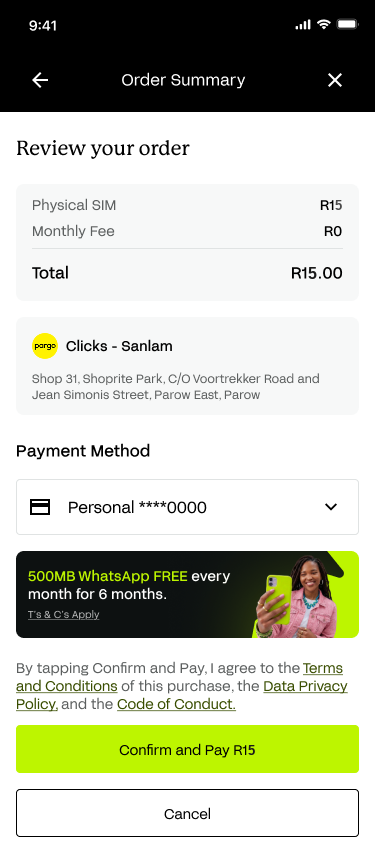
The Order Summary screen shows everything before payment is taken:
- Physical SIM: R15
- Monthly fee: R0
- Total: R15.00
- Your selected Pargo collection point
Select your payment card, then tap Confirm and Pay. By tapping, you agree to the Terms and Conditions, Data Privacy Policy, and Code of Conduct.
Step 8: Approve payment via your banking app
Your bank may redirect you or send a push notification to verify the payment (3D Secure). Open your banking app and approve when prompted.
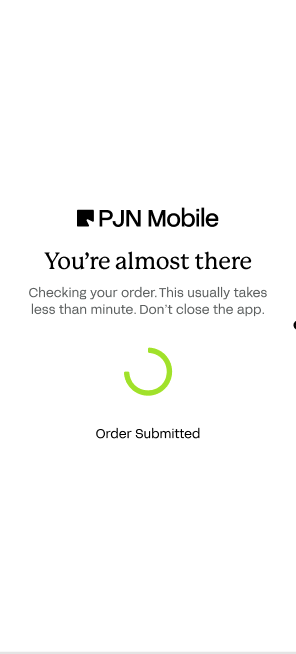
Important: Do not close or navigate away from the PJN Mobile app while payment is processing. This may cause a failed transaction.
Step 9: Order confirmed - you're done!
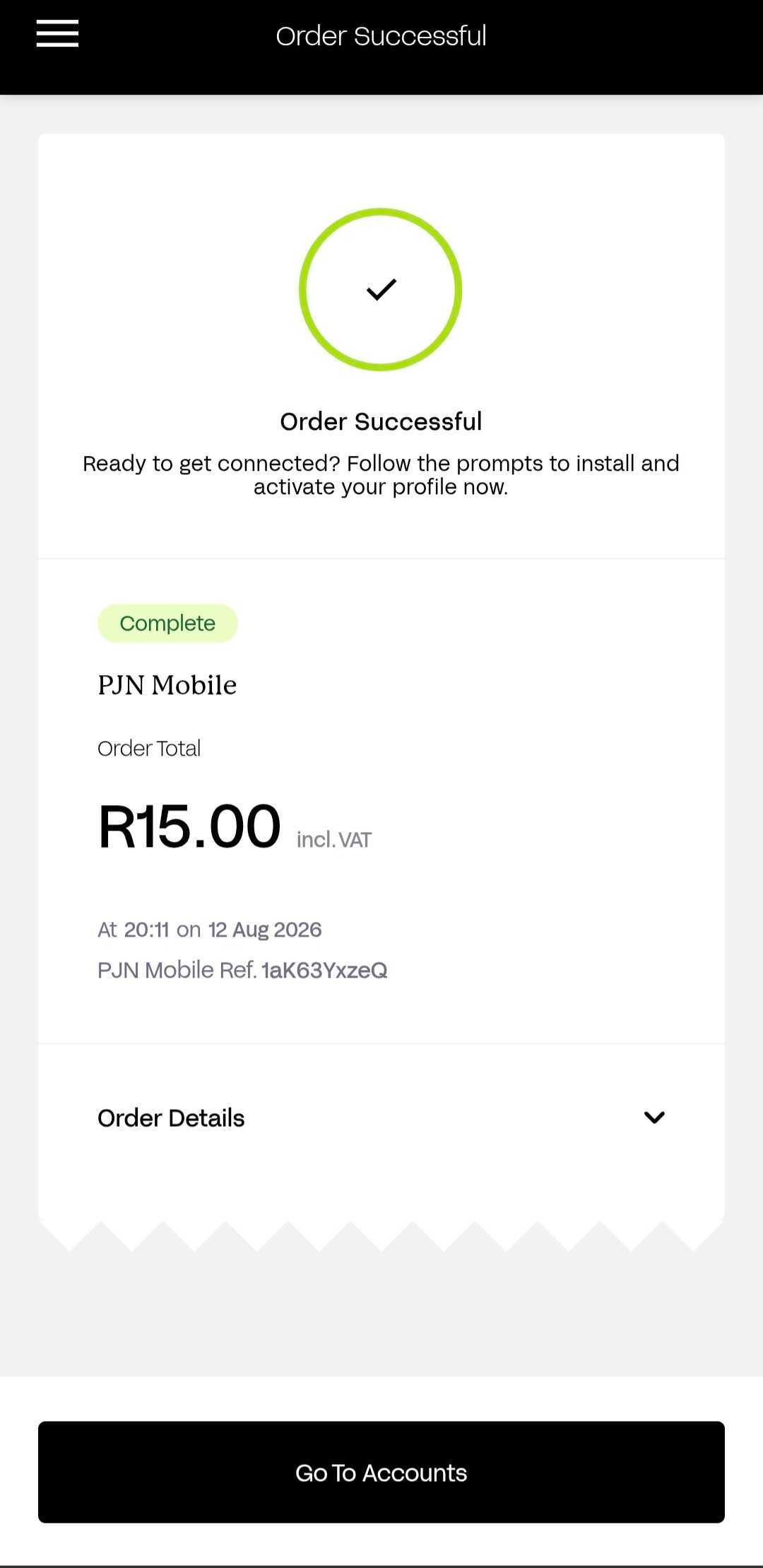
Once payment is approved, the app processes your order (under one minute). Keep the app open. You’ll then see a screen titled "Success" showing:
- Your SIM is heading to your chosen Pargo location
- Order total: R15.00 incl. VAT
- Date, time, and PJN Mobile reference number — keep this for your records
Tap Track Your Order for real-time updates. You’ll also receive an SMS when your SIM is ready to collect.
Remember: Bring a valid South African ID when collecting. RICA verification is completed at the Pargo point or via the app.
Note: Delivery of your Physical SIM to your chosen Pargo point typically takes 2–5 business days from the date of your order.
Quick Summary
Step 1 | Open PJN Mobile app → tap Get Connected |
Step 2 | Choose SIM type — Physical SIM (R15) or eSIM (R2) |
Step 3 | Tap your preferred SIM → highlighted → tap Next |
Step 4 | Enable location or search to find nearest Pargo point |
Step 5 | Select your preferred Pargo collection point |
Step 6 | Review order summary → confirm payment → tap Confirm and Pay |
Step 7 | Approve payment via your banking app |
Step 8 | Wait for order processing — do not close the app |
Step 9 | Order confirmed — await SMS when SIM is ready to collect |
Troubleshooting
Issue | What to do |
Location not enabling | Search manually using the search bar at the top of the screen |
No Pargo points showing | Search for a specific area or suburb in the search bar |
Payment declined | Check your card details, ensure sufficient funds, or try a different card |
App freezes during processing | Close and reopen the app — check your order status under My Orders |
No SMS received | Check your number is correct in your profile, or contact PJN Mobile support |
SIM not at Pargo point | Use Track Your Order on the confirmation screen. Delivery takes 2–5 business days, so please allow this time before checking with the Pargo point. If the window has passed, contact customer care. |
Protecting Yourself from Fraud
Fraud Scenario | What to Do |
Someone contacts you offering to place or "speed up" a SIM order on your behalf, asking for your ID number or card details | SIM orders can only be placed by you, in the official PJN Mobile app. Never share your ID number, card details, or PIN with anyone offering to order on your behalf. |
You receive an SMS or email with a "track your SIM order" link that asks you to log in or enter card details | Do not click links in unsolicited messages. Track your order only inside the PJN Mobile app using the Track Your Order button. |
Someone at a Pargo point asks for extra payment, your PIN, or additional ID documents beyond your SA ID to release your SIM | Your SIM is already paid for in the app — no extra payment or PIN should ever be requested at collection. Decline and contact PJN Mobile support on. |
You're asked to confirm a SIM order or OTP for a purchase you did not make | Do not approve or share the OTP. Contact PJN Mobile support on the PJN app, as this may indicate someone has your card details. |
Need Help?
Please contact PJN Mobile Customer Support.
Was this article helpful?
That’s Great!
Thank you for your feedback
Sorry! We couldn't be helpful
Thank you for your feedback
Feedback sent
We appreciate your effort and will try to fix the article